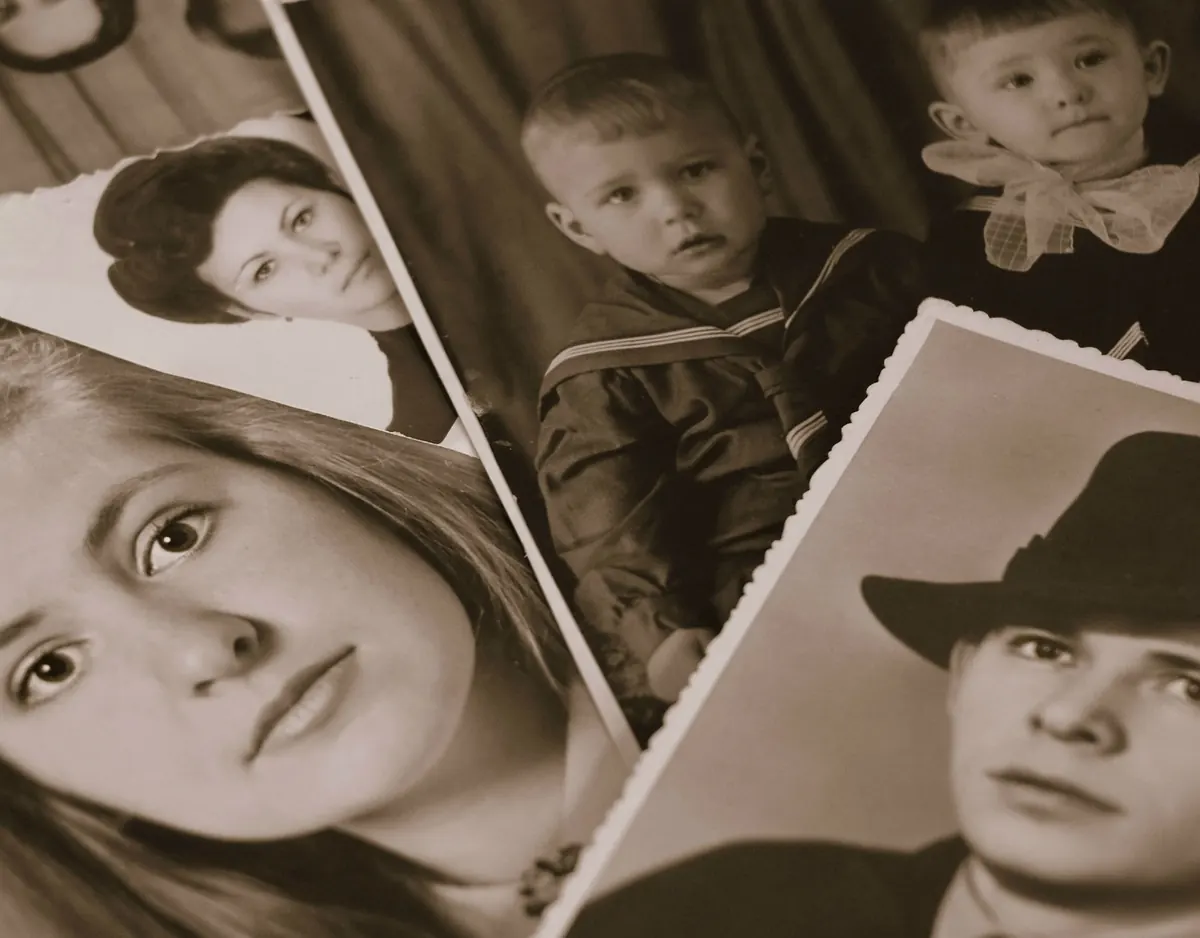
The shoebox is open on the kitchen table. Inside: a wedding portrait with a bent corner, a strip of seaside snapshots, a formal studio card of someone whose name has gone missing. You want to keep them, not just store them. Scanning is the practical next step, and it is less about equipment than about patience. A modest flatbed scanner and a clean workspace can produce files that hold the grain of the paper, the handwriting on the back, and the expression you remember. The aim is not a perfect archive in one weekend. It is a reliable copy of each photograph, made carefully enough that you will not need to handle the original again.
Begin with the print, not the scanner
Wash and dry your hands before you touch anything. Work on a clean, uncluttered table, and keep drinks well away. Handle prints by the edges; skin oils and grit do real damage over time. If a photograph is curled, do not force it flat under a heavy book. Scan it as it lies, or place it in an archival sleeve and seek advice before pressing it. A torn or flaking print is a stop sign, not a challenge. Set it aside and ask a conservator or an experienced archivist what to do next.
Sort as you go. Keep a pile for “scan first,” one for “needs repair,” and one for “ask the family.” A soft graphite pencil on the back of a modern print is usually safer than ink, but do not write on the image side, and do not use tape. If you want to label something, write on the sleeve or envelope instead. That small habit saves arguments later.
Resolution: enough pixels for the job
Resolution is the part beginners worry about most, and it is simpler than it sounds. Dots per inch and pixels per inch are often used interchangeably; what matters is how much detail you capture. A common starting point for family prints is 600 ppi. A 4×6 inch print scanned at 600 ppi gives roughly 2400 × 3600 pixels, which is enough for a good reprint and a little cropping. If you only need screen copies, 300 ppi is usually fine. For very small prints, such as old passport photos or tiny snapshots, go higher—1200 ppi is not unreasonable.
A quick resolution guide
- 300 ppi: screen viewing, sharing, and larger prints where you do not plan to crop.
- 600 ppi: a sensible default for most family photographs and small enlargements.
- 1200 ppi: tiny prints, detailed studio cards, and images you may want to examine closely.
Do not “upscale” a scan afterwards to make it bigger. That adds pixels, not detail. If you need more, rescan the original at a higher setting. Also check the scanner’s preview before you commit: a crooked photo is easier to straighten on the glass than in software.
Pick a master format and a working copy
Scan to TIFF for your master file. It is stable, widely supported, and does not throw away image information each time you save. Use uncompressed TIFF or LZW compression, which is lossless. Keep the master untouched. When you need to email a photo, print it, or put it in a family album, make a JPEG copy at a high quality setting. JPEG is fine for sharing; it is not the best choice for the only copy of a fragile original.
Scan in colour even if the photograph is black and white. Colour captures the tone of aged paper, the difference between warm and cool blacks, and any hand-tinting. You can always make a greyscale copy later. Do not use PNG for photographs as a habit; it is useful for graphics, but TIFF and JPEG will serve you better here.
Build a simple scanning station
A flatbed scanner is still the easiest tool for most people. Clean the glass with a lint-free cloth and a little lens cleaner, then dry it fully. Place the photo face down, align it with the edge of the glass, and close the lid. If the print does not sit flat, let the lid rest naturally rather than pressing hard. Open the scanner software, choose a preview, crop just outside the edges of the photograph, set your resolution, and scan. Save the master as TIFF.
A phone can work for quick access copies, but it needs care. Put the photo on a matte surface, not a shiny table. Stand above it with the phone parallel to the print, use soft indirect daylight, and turn off the flash. Use a scanning app or camera mode that lets you lock focus and exposure. Check the edges and corners before you move on. Phone scans are convenient, but for a family archive, a flatbed scan at 600 ppi is the sturdier choice.
Scan the whole photograph
It is tempting to crop tightly around the faces. Resist that. Leave a small border of the original print visible, because edges, borders, and studio marks are part of the object. If there is writing on the back, scan the back too and name it clearly, for example adding “_back” to the file name. Use a soft brush to remove loose dust from the print and the scanner glass before each scan. A speck of grit under the lid can leave a line on the glass or press into the image.
Check a few scans at 100 percent on your screen. Look at the shadows and the highlights, not just the faces. If the scan looks muddy or the highlights are blown out, adjust the scanner’s exposure or tone settings and try again. Small corrections now are easier than retouching later.
Name, check, and back up as you go
Give every file a name you will understand in five years. A date helps, even if it is approximate: “1958-06_grandma-rose-wedding_001.tif” is better than “IMG_2043.tif.” If you do not know the date, write “undated” and add the family name or place. Keep a simple folder structure by family branch or decade. Check each scan before you move to the next one; a blurry or cropped file is much easier to redo while the photograph is still on the glass.
Back up the files the same day. Keep the working copy on your computer, a second copy on an external drive, and a third copy somewhere else—another drive at a relative’s house, or a reputable cloud service. Do not rely on a single drive. Technology fails quietly, and family photographs are hard to replace.
Start with ten photographs
Choose ten photographs that matter, not the whole shoebox. Clean the glass, set 600 ppi, scan the front and the back, name the files, and copy them to two places. Then stop. The next session will be easier because you already know the routine.
- Sort ten prints and set aside any that are torn or flaking.
- Clean your hands, the table, and the scanner glass.
- Scan at 600 ppi to TIFF, leaving a small border around the print.
- Scan the back if it carries writing or a studio mark.
- Check each file at 100 percent before moving on.
- Name the files, save them in a dated folder, and make two backups.
That is enough for one evening. The work is slow, but the result is a set of files you can trust—clear, complete, and ready for the next generation to open.
Photo: Bellahu123 / Pixabay